Fixing Interference Between 2.4GHz Baby Monitors and Zigbee Lights
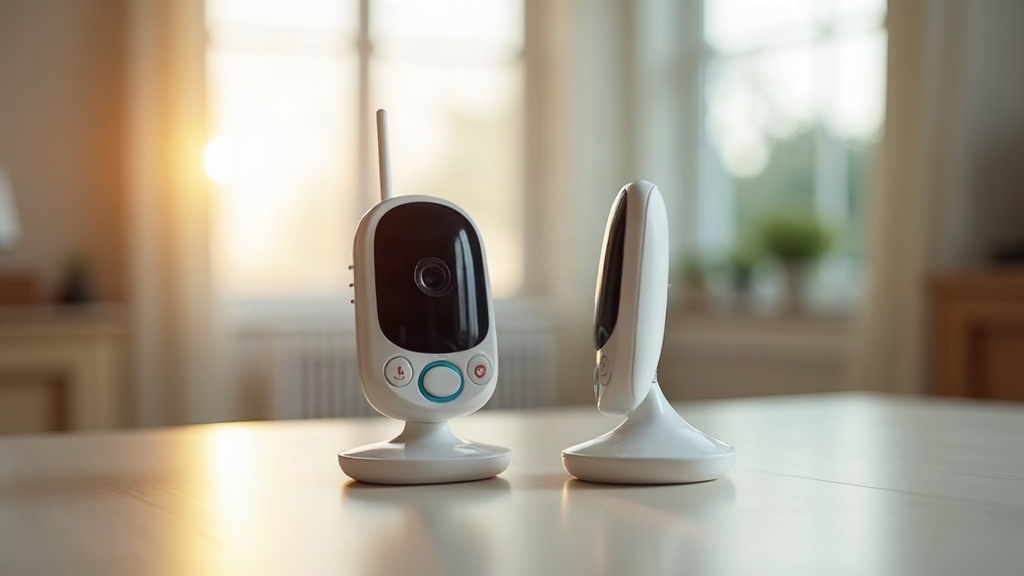
If your baby monitor starts hissing, freezing up, or cutting out every time your smart lights flick on, you’ve probably got a turf war happening on the 2.4GHz band. Your monitor and your Zigbee lighting network are both trying to use the same crowded airspace, and when their channels overlap, you get static, lag, or dead air right when you need the monitor to actually work. The good news is that this is a known issue with known fixes, not some mystery you have to solve from scratch.
Why This Happens
Most video and audio baby monitors (the non-WiFi kind, especially) run on 2.4GHz using FHSS (frequency-hopping spread spectrum) or DECT-adjacent frequencies. Zigbee, the protocol quietly running Philips Hue, IKEA Tradfri, SmartThings, and a pile of other smart bulbs and switches, also lives exclusively on 2.4GHz, spread across 16 channels numbered 11 through 26.
Here’s the actual problem: channel overlap.
- WiFi routers usually sit on channel 1, 6, or 11 (2.412 to 2.462 GHz).
- Zigbee is supposed to default to channel 15, 20, or 25 to dodge WiFi, but plenty of hubs ship on channel 11 or 15 straight out of the box, which defeats the purpose.
- Baby monitors hop across a wide swath of that same band and often give you zero control over which frequencies they use.
When a Zigbee mesh (especially a chatty one with a dozen repeating bulbs) parks itself on a channel too close to your monitor’s hopping range, you get packet collisions. More devices means more chatter, and more chatter means more interference. That’s exactly why things often go sideways right after you add a third or fourth smart bulb to the house.
How to Confirm It’s Actually Interference
Before you start flipping settings, rule out the obvious stuff first:
- Move the monitor and receiver closer together. If the audio clears up, you’re dealing with a range problem, not interference.
- Kill power to your Zigbee hub for a minute. If the monitor instantly sounds better, you’ve got your answer.
- Notice if the static only shows up when certain lights trigger, say, a motion-activated bulb in the hallway. That pattern points straight at Zigbee traffic spikes rather than generic background noise.
Fixes That Actually Work
1. Change the Zigbee Channel
This is the one fix that moves the needle more than anything else. Open your hub’s app (Hue Bridge, SmartThings, Aqara Hub, or Home Assistant running ZHA or Zigbee2MQTT) and do this:
- Head into network or radio settings and switch to channel 25 or 26. These sit at the top end of the band, about as far from typical WiFi and most monitor frequencies as you can get.
- Stay away from channels 11 through 14. They overlap heavily with WiFi channel 1 and won’t solve anything.
One heads-up: on hubs without “soft” channel migration, changing the Zigbee channel usually forces you to re-pair every device. Budget 15 to 20 minutes for that, not five.
2. Reposition the Hub and Monitor
Physical distance does more work here than people assume:
- Keep your Zigbee hub at least 3-6 feet (1-2 meters) away from the monitor’s base station and receiver.
- Don’t shove the hub right against the nursery wall that backs onto the monitor.
- Get the hub up off the floor. Metal furniture and walls bounce and amplify interference more than you’d think.
3. Switch Your WiFi Router to 5GHz Where Possible
Zigbee and the monitor both live on 2.4GHz, sure, but a crowded WiFi network piling onto that same band just adds more noise to an already noisy room. Push your router’s main traffic over to 5GHz and leave only the IoT gadgets that genuinely need 2.4GHz behind. Less congestion, fewer headaches.
4. Reduce Zigbee Mesh Density Near the Nursery
Every Zigbee bulb doubles as a repeater, constantly relaying mesh traffic whether you asked it to or not. If you’ve got five or more smart bulbs bunched up near the nursery, try this:
- Thin out the repeater devices in that specific room.
- Swap mains-powered Zigbee devices nearby for battery-powered sensors, which don’t repeat traffic.
5. Consider a DECT-Based Monitor
Still fighting interference after all that? DECT 1.9GHz monitors (common across European models) skip the 2.4GHz band entirely, which means they sidestep this whole fight. Worth keeping in mind if you’re shopping for a new unit anyway.
Quick Troubleshooting Checklist
- Confirm Zigbee is the cause by temporarily disabling the hub
- Change Zigbee channel to 25 or 26
- Re-pair devices if required
- Move hub 3+ feet from monitor equipment
- Shift home WiFi to 5GHz where devices support it
- Audit bulb/repeater density near the nursery
Final Thoughts
Interference between 2.4GHz baby monitors and Zigbee lighting is almost always fixable, and you don’t need to throw out either system to solve it. In most homes, just switching the Zigbee network to channel 25 or 26 and putting a bit more distance between the hub and the monitor clears up the static within minutes. If the problem sticks around after that, you’re probably looking at mesh density or router congestion, both of which get solved with some minor rearranging, not a trip to the store.