Broadlink RF Bridge for Motorized Projector Screens in Home Assistant
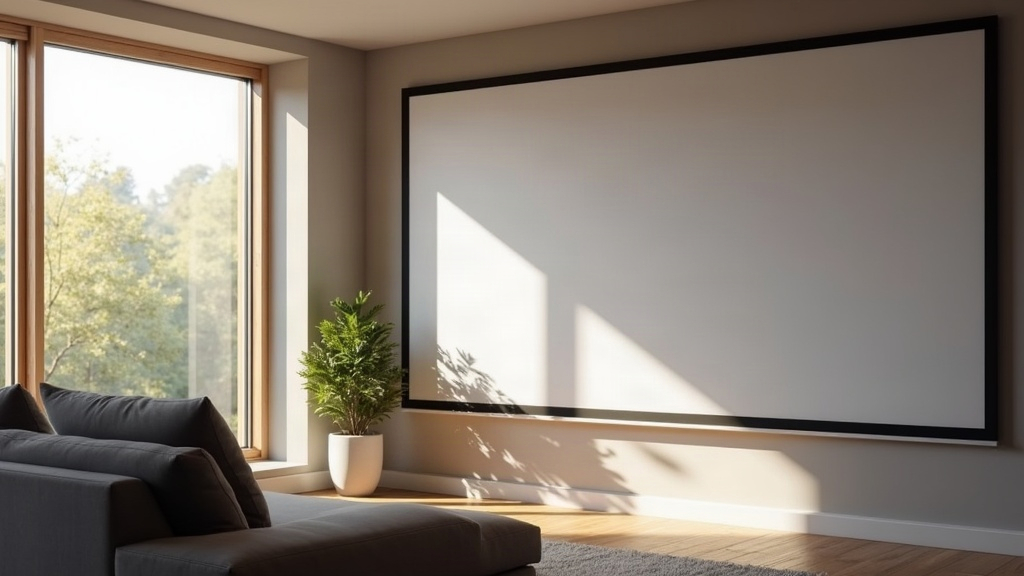
Integrating a Broadlink RF Bridge with Home Assistant for Motorized Projector Screens
Most motorized projector screens ship with a basic RF remote and nothing else. No app, no smart home hookup, nothing. You end up digging the remote out from between couch cushions every single time you want to watch something. A Broadlink RF Bridge (RM4 Pro or RM Mini 3) fixes that: it captures your screen’s RF433 codes and replays them through Home Assistant. Voice control, automations, a dashboard button that actually works. No electrician, no swapping out the screen.
Why Use a Broadlink RF Bridge Instead of a Smart Screen Controller
Sure, dedicated smart projector screens exist, the Wi-Fi or Zigbee kind. But they’re pricey, and you’re locked into whatever ecosystem the manufacturer picked. Meanwhile most screens already on the market, Elite Screens, Silver Ticket, half the generic ones on Amazon, run on plain RF433 remotes. A Broadlink bridge lets you:
- Keep the screen you already own instead of buying new hardware
- Fold it into the same automation as your projector, lights, and AV receiver
- Add scheduling, presence detection, or voice commands through Home Assistant
- Skip vendor lock-in, since Broadlink talks to dozens of different RF and IR devices
What You’ll Need
- A Broadlink RM4 Pro (recommended, it does both RF and IR) or an RM Mini 3 (IR only, which won’t help you here since most screens use RF)
- Home Assistant with the official Broadlink integration, either through HACS or the core install
- The original RF remote for your screen (up, down, stop)
- A stable 2.4GHz network. Broadlink hardware simply won’t connect to 5GHz, so don’t waste time troubleshooting that
Step-by-Step Integration
1. Add Broadlink to Home Assistant
Head to Settings → Devices & Services → Add Integration, type “Broadlink,” and let auto-discovery find the device on your network. If it doesn’t show up, add it manually with the static IP. Honestly, do a DHCP reservation for it in your router from the start, it’ll save you a headache down the road when the device drops off and re-ip’s itself.
2. Learn the RF Codes
RF learning is a bit more fiddly than IR because there’s a frequency sweep involved first:
- In Developer Tools → Actions, call
remote.learn_commandon your Broadlink entity. Setcommandtoscreen_upanddevicetoprojector_screen. - Hold down the Up button on the physical remote during the sweep phase. You’ll see the Broadlink’s light blink while it hunts for the frequency.
- Once it locks on, tap Up again briefly, just a short press, to grab the actual code.
- Do the same thing separately for
screen_downandscreen_stop.
Pro tip: Capture each command twice and compare the results. RF is noisier than IR by nature, and a clean second capture helps you avoid “ghost” signals, the kind that make your screen twitch or stop halfway for no obvious reason.
3. Create Scripts or Switch Entities
Calling remote.send_command by hand every time gets old fast. Wrap each action into a script instead:
script: projector_screen_down: sequence:
- service: remote.send_command target: entity_id: remote.broadlink_rm4 data: device: projector_screen command: screen_down projector_screen_up: sequence:
- service: remote.send_command target: entity_id: remote.broadlink_rm4 data: device: projector_screen command: screen_up
Drop these onto your Lovelace dashboard as buttons, or expose them to Google Assistant or Alexa if you’d rather just say “lower the screen.”
Automating the Screen with Your Home Theater
This is where it actually pays off, when the screen becomes part of a bigger routine instead of a standalone gadget:
- Movie Mode: Turn on the projector through Home Assistant, and it also fires
projector_screen_down, dims the lights, and closes the smart blinds. One tap, whole room transforms. - Auto-retract on power off: If the projector’s smart plug reports near-zero power draw (say, under 2W, meaning it’s idle, not just paused), wait five minutes and trigger
projector_screen_upautomatically. - Presence-based safety: Block the screen from lowering if a door sensor shows the room is empty. No point burning motor cycles for nobody.
Troubleshooting Common Issues
- Screen doesn’t respond: RF is directional and weaker than people expect. Keep the Broadlink unit roughly in line of sight of where you’d normally point the remote, and keep metal objects (speakers, shelving) out of the path.
- Commands fire twice: Some remotes repeat signals rapid-fire. Add a short
delaybetween triggers in your automation to stop double-execution. - Lost connection after a router reboot: This almost always comes down to skipping the DHCP reservation. Set it once and the problem goes away for good.
Final Thoughts
A Broadlink RF Bridge turns a dumb motorized screen into a real piece of your smart home theater, no new hardware required, just some patience with RF learning and a handful of scripts. Set it up once, properly, and that clunky RF remote goes in a drawer and stays there.